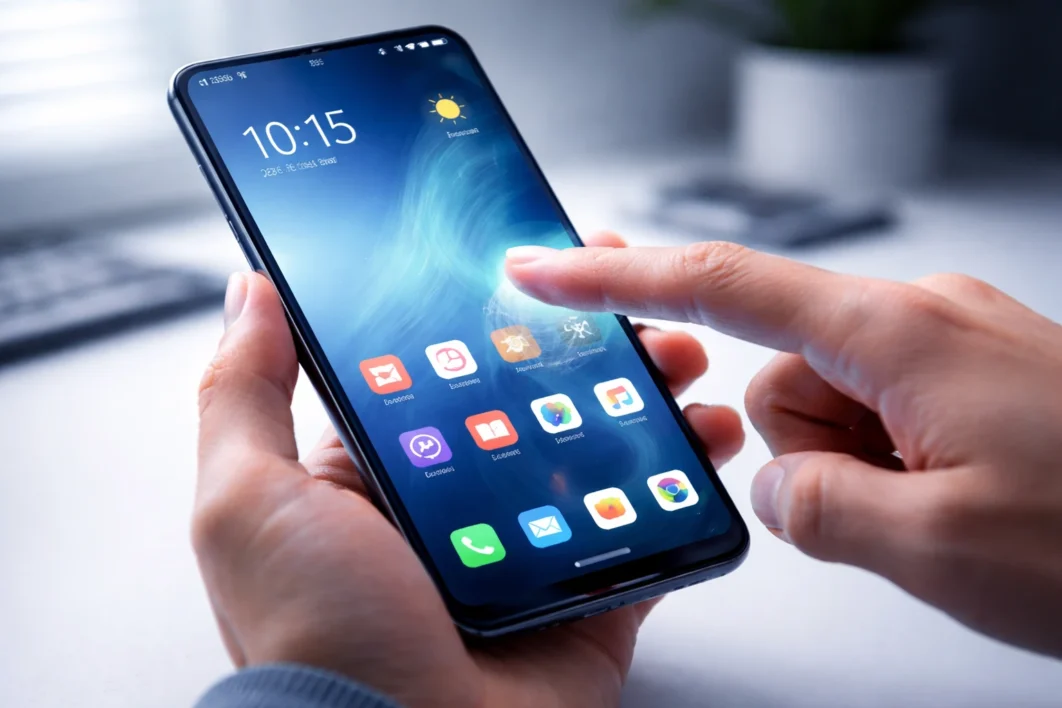
If your phone touch is not working but the display is fine, you are not alone, and no, your phone is not haunted. This is one of the most frustrating Android problems because the screen looks perfectly normal. It lights up. It shows notifications. But the moment your finger lands on it? Nothing. Dead silence. The phone just stares back at you.
The good news? Most touchscreen issues are fixable without visiting a repair shop or spending a single rupee.
Let’s walk through every real, tested solution, from the stupidly simple to the technically smart.
Why Is Your Touch Screen Not Responding Even Though the Display Works?
Before jumping into fixes, it helps to understand what is actually happening. Your phone has two separate layers: the display panel (which shows visuals) and the digitiser (which detects touch). When your display works fine but touch doesn’t respond, the problem is almost always in the digitiser layer, the software controlling it, or something interfering with the signal.
Common reasons behind unresponsive touch screen android problems include:
- Software bugs or a corrupted OS update
- Screen protector interference
- Moisture or sweat on the display
- Ghost touch caused by faulty hardware or electrical interference
- A crashed system process
- Partial hardware damage from a drop (even without visible cracks)
Now that you know the why, let’s get into the how.
Start Here – The Fixes Most People Skip
Did You Try Restarting? (No, Really)
Look, nobody wants to hear “have you tried turning it off and on again.” But a proper restart clears RAM, kills frozen processes, and resets the touch input driver. If your touch screen is lagging or completely frozen, a restart fixes it about 40% of the time, no joke.
Hold the power button, tap restart, and wait for a full reboot. Not a lock screen wake-up. A full restart.
If your touch is so unresponsive that you can’t even tap restart, hold the power button for 10–15 seconds. Most Android phones force-restart that way.
Clean Your Screen (You’d Be Surprised)
Oil, moisture, and dust sitting on your display can seriously interfere with capacitive touch sensitivity. Your screen works by detecting the electrical charge from your fingertip. Even a thin layer of lotion, sweat, or water disrupts that signal.
Wipe your screen with a dry microfibre cloth, not your shirt sleeve, and try again. If you were using your phone with wet hands or in a humid environment, give it a minute to dry out.
Remove the Screen Protector
Thick tempered glass protectors, especially low-quality ones, are one of the top causes of partial touch not working on Android. They add distance between your finger and the digitiser. Cheap ones don’t cut out cleanly around the edges, which creates dead zones in corners or along one side.
Peel off the screen protector and test touch directly on the glass. If everything suddenly works, you have found your culprit.


What to Do When Touch Screen Is Partially Unresponsive
Sometimes it is not the whole screen. One corner stops responding. The top half works but the bottom doesn’t. Or the edges register nothing.
Check for Physical Damage
Even without visible cracks, a drop can disconnect or partially damage the digitiser ribbon cable inside. If your phone took a fall recently and now shows partial touch issues, the internal connector might be loose.
You won’t be able to fix this at home. But before assuming hardware damage, go through all the software fixes below first.
Check for Ghost Touch
Ghost touch is when your phone registers taps and swipes you never made. The screen taps itself, opens apps randomly, or types on its own. This is as creepy as it sounds.
Ghost touch on Android can be caused by:
- A faulty charger or charging cable introducing electrical interference
- A damaged digitiser sending false signals
- A poorly fitted screen protector creating pressure points
Quick test: Unplug your phone from the charger and check if the ghost touch stops. If it does, your charger or cable is the problem, replace it with a certified one.
Software Fixes for Touch Not Responding After an Update
Android updates sometimes break touch sensitivity. It is not common, but it happens, especially on mid-range phones where the OEM’s software optimisation isn’t perfect.
Clear Cache Partition
Your phone stores temporary system data in a cache partition. After an update, this cache can conflict with new system files and cause touch issues.
Here is how to clear it on most Android phones:
- Power off your device
- Hold Volume Down + Power (or Volume Up + Power, varies by brand) to enter Recovery Mode
- Use volume keys to navigate to Wipe Cache Partition
- Confirm with the power button
- Reboot the device
This does not delete your personal data. It only clears temporary system files.
Boot Into Safe Mode
Safe mode disables all third-party apps and runs only the core Android system. If your touch works fine in safe mode, a downloaded app is causing the problem.
To enter safe mode on most Android phones: hold the power button, then long-press the “Power Off” option until you see a prompt to enter safe mode.
Test your touchscreen thoroughly. If it responds normally, start uninstalling recently installed apps one by one until the issue disappears.
How to Fix Android Touch Calibration Issues
Here is something many people don’t know: Android doesn’t have a built-in touch calibration tool in stock form. Unlike older resistive touchscreens, modern capacitive displays calibrate automatically. But some manufacturers, especially Xiaomi (MIUI), Realme, and Samsung, include a touch sensitivity setting.
Enable Touch Sensitivity
If you use a screen protector, your phone may have a Touch Sensitivity option that compensates for the extra layer:
- Samsung: Settings → Display → Touch Sensitivity → Toggle On
- Xiaomi/MIUI: Settings → Additional Settings → Developer Options → Touch → Enable touch sensitivity
- Realme/OnePlus: Settings → Display → Increase Touch Sample Rate (gaming phones)
This won’t fix a hardware problem, but it helps if your touch feels sluggish or misses light taps.
Use a Third-Party Calibration App (With Caution)
Apps like Touchscreen Calibration on the Play Store claim to recalibrate your digitiser. The results vary widely. They work better on some devices than others. If you try one, read reviews first and choose one with a high rating and recent updates.



Fix Touch Screen Lagging on Android
Touch delay and lag are different from a completely dead screen. If there is a noticeable gap between your tap and the phone’s response, these fixes target that specifically.
Disable Animations
Android’s visual transitions look nice but they add perceived lag. You can reduce or remove them:
- Go to Settings → About Phone
- Tap Build Number seven times to unlock Developer Options
- Go to Settings → Developer Options
- Set Window Animation Scale, Transition Animation Scale, and Animator Duration Scale all to 0.5x or Off
Your phone will feel noticeably snappier immediately.
Free Up RAM and Storage
A phone running on 90% storage and maxed-out RAM processes touch inputs slower. This is because the system is constantly juggling active data and has fewer resources for input processing.
Delete unused apps, clear app caches (Settings → Apps → select app → Clear Cache), and move large files to cloud or external storage.
When the Touch Stops Working After Getting Wet
Android phones, even those with IP ratings, can have temporary touch issues after water exposure. Water acts as an unintended conductor on your capacitive screen, causing the phone to register phantom touches or register nothing at all.
What to do:
- Wipe the screen completely dry with a clean cloth
- Let the phone air dry for 15–30 minutes before testing
- Do not use heat guns or hair dryers, thermal damage is real
- If water got inside the port, place the phone upright in a dry environment
Once the moisture clears, the touch usually returns to normal.
Does Putting Your Phone on Charge Fix Touch Problems?
Sometimes, yes, but not for the reason you think. When your battery drops below 5–10%, Android throttles performance to preserve power. This includes input processing. Your touch response can feel delayed or unresponsive simply because the system is running in a low-power survival mode.
Plug in and charge to at least 20% before testing touch again.
However, as mentioned earlier, if your touch works fine off the charger but goes haywire while plugged in, you have a charger issue. The charger is sending interference through the USB port into the display circuit. Use the original charger or a quality certified alternative.



Advanced Fix – Factory Reset (Last Resort)
If nothing above has worked and you have ruled out physical damage, a factory reset may be your final software option. This wipes everything and restores the phone to its original state, as if it just came out of the box.
Before you reset:
- Back up all photos, contacts, and files to Google Drive or your PC
- Note down any app login credentials you might forget
To factory reset:
- Settings → General Management → Reset → Factory Data Reset
Or if touch is completely unresponsive, use Recovery Mode (Volume Down + Power) and select Wipe Data/Factory Reset.
If the touch still doesn’t work after a factory reset, the problem is hardware, not software.
Is It Time to Visit a Repair Shop?
Yes, if:
- Touch is unresponsive after factory reset
- The problem started right after a physical drop
- One half or one corner of the screen consistently doesn’t respond
- You see pressure marks, discolouration, or bleeding under the display
A technician will either reseat the digitiser cable (cheap fix) or replace the display assembly (moderate cost depending on your phone model).
Authorised service centres are always preferable over random local shops for display-related repairs, especially if your phone is under warranty. Unofficial repairs on some phones can void the remaining warranty.
How to Prevent Touch Issues in the Future
Once you have fixed the issue, a few habits keep it from coming back:
Use quality accessories only. Cheap chargers and USB cables are a top cause of ghost touch and electrical interference. Always use original or MFi/USB-IF certified products.
Get a proper screen protector. Not all tempered glass is equal. Look for ones that are specifically designed for your phone model, with proper cutouts and the right thickness (0.33mm is the sweet spot).
Keep your phone dry. Even IP-rated phones shouldn’t be submerged repeatedly. The water resistance rating degrades over time.
Update your OS regularly. Manufacturers push bug fixes in software updates. Skipping updates means you might be sitting on a known touch bug that has already been patched.
Don’t ignore minor touch issues. A small unresponsive corner today can become a fully dead screen after another drop. Get it checked early.
Quick Recap – What to Try and In What Order
When your phone touch is not working but the display is fine, work through fixes in this order:
Restart the phone first. Then clean the screen and remove any screen protector. Check for ghost touch by unplugging the charger. Boot into safe mode to rule out third-party apps. Clear the cache partition. Enable touch sensitivity in display settings. Free up storage and disable animations. If touch appeared after water exposure, dry the device completely. Try a factory reset as the final software option. If nothing works, visit an authorised repair centre.
Most cases resolve within the first three or four steps. The hardware route is genuinely rare.
Frequently Asked Questions
Why is my phone touch not working but the display is fine?
Your display and touch sensor are two separate components. The display (LCD/AMOLED panel) shows visuals, while the digitiser detects your finger. When the display works but touch doesn’t, the digitiser, its software driver, or something interfering with it, like a bad screen protector, a faulty charger, or a software crash, is the cause. Physical hardware damage from a drop can also disconnect the internal digitiser cable without cracking the screen visibly.
How do I fix an unresponsive touch screen on Android without a factory reset?
Try these steps in order: restart the phone, remove the screen protector, clean the screen, unplug the charger (to rule out ghost touch), boot into safe mode to check for app conflicts, clear the cache partition from recovery mode, and enable Touch Sensitivity in display settings. Most cases resolve before reaching a factory reset.
Can a bad charger cause touch screen problems on Android?
Yes. A low-quality or damaged charger introduces electrical interference through the USB port into the phone’s display circuit. This causes ghost touch, where the screen taps and swipes on its own, or makes the touchscreen completely unresponsive while plugged in. Unplugging the charger and testing touch response immediately confirms if the charger is the culprit.
Why did my touch screen stop working after an Android update?
Software updates can sometimes conflict with existing system cache or touch input drivers, especially on mid-range Android phones. The fix is to clear the cache partition (through Recovery Mode → Wipe Cache Partition) without losing data, or boot into safe mode to check if the update caused a system-level conflict.
How do I fix ghost touch on Android?
Ghost touch is usually caused by a faulty or non-certified charger, a damaged digitiser, or a poorly applied screen protector creating pressure points. First, unplug the charger and test. Then remove the screen protector. If ghost touch persists without accessories, it points to a hardware issue with the digitiser that requires professional repair.
Why is only part of my touch screen not responding?
Partial touch failure, where one corner, half the screen, or the bottom area stops responding, usually points to a damaged digitiser ribbon cable inside the phone (often after a drop), a screen protector with a dead zone near the edge, or a software-driven input mapping error. Try removing the screen protector first. If the issue persists, it is likely hardware and needs a technician.
Does touch screen calibration fix unresponsive touch on Android?
Modern Android phones use capacitive touchscreens that self-calibrate. Manual calibration is not built into stock Android, but Samsung, Xiaomi, and Realme include a Touch Sensitivity toggle in display settings that improves touch response under thick screen protectors. Third-party calibration apps have mixed results and are not a guaranteed fix.
My phone touch stopped working after it got wet, what should I do?
Moisture on a capacitive screen interferes with touch signals and can cause the screen to register false or no touches. Wipe the screen completely dry with a microfibre cloth, avoid heat sources like hair dryers, and let the phone air-dry for 15–30 minutes in an upright position. Touch usually returns to normal once moisture clears from the surface and ports.
How do I use my Android phone if the touch screen is not working at all?
You can connect a USB OTG adapter with a mouse to navigate the phone. Alternatively, enable Voice Access from accessibility settings (if pre-enabled) to control the phone by voice. On Samsung phones, you can mirror and control the device using Samsung DeX or Smart View on a PC. These workarounds let you back up data or perform a factory reset when touch is completely non-functional.
When should I take my phone to a repair shop for touch issues?
Visit a repair centre if: touch remains unresponsive after a factory reset, the problem started immediately after a physical drop, one specific area of the screen consistently shows no response, or you see discolouration, pressure marks, or display bleeding. These are signs of a hardware fault, either a disconnected digitiser cable or a damaged display assembly, that cannot be fixed with software.
Final Thoughts
A phone touch not working but display being fine is annoying, but it is rarely a death sentence for your device. Nine times out of ten, it is something fixable: a rogue app, a bad charger, a thick screen protector, or a software bug from an update.
Work through the steps methodically, don’t skip the obvious ones, and you will likely have your phone back to normal without spending anything. And if you do end up at a repair shop, at least you will walk in knowing exactly what to tell them, which saves both time and unnecessary upselling.