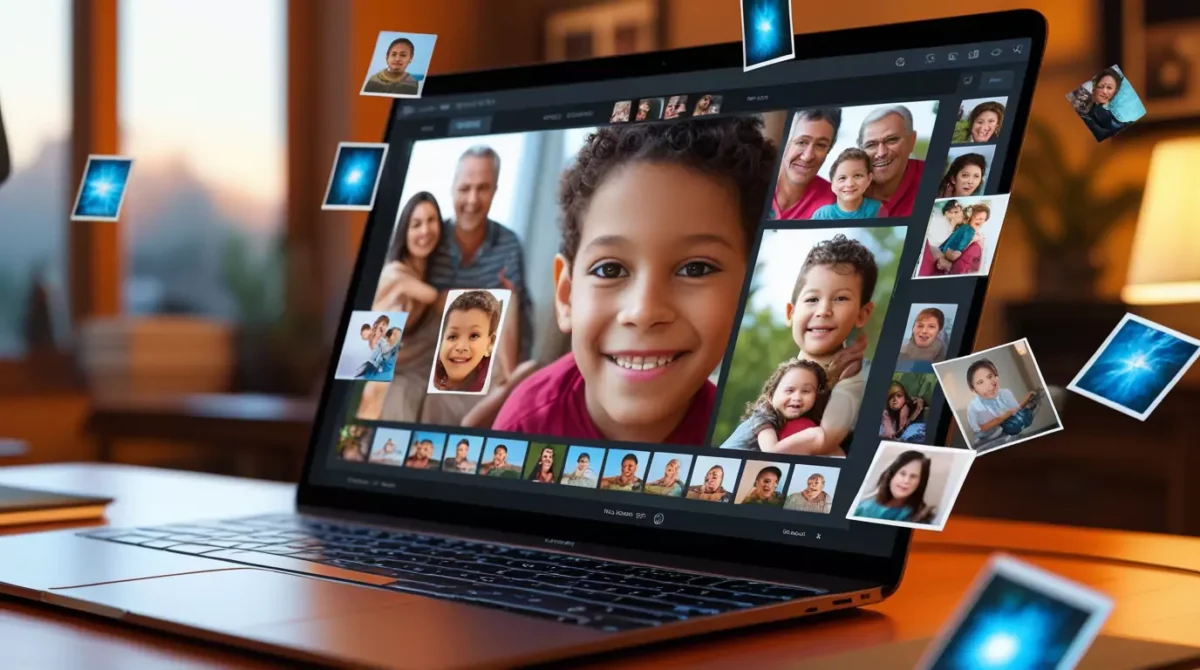
I’ve got 47,000 photos on my phone.
No joke.
And I bet you’re drowning in digital photos too.
The worst part? When someone asks for that photo of Uncle Steve from Christmas 2019, I’m scrolling for 20 minutes like an absolute muppet.
Sound familiar?
Here’s the thing – organizing digital photos by family member automatically isn’t just possible, it’s bloody brilliant when you know the right tricks.
Why Your Photo Library Is a Complete Mess
Let me guess.
You take photos of everything. Birthday parties. Random Tuesday dinners. The dog doing something adorable.
But then what?
They sit in your camera roll like digital hoarding. No folders. No tags. Just chaos.
I used to be the same. Until I realised something game-changing.
The smartest people don’t organise photos manually. They make technology do the heavy lifting.
The Face Recognition Revolution
Modern photo apps are scary good at recognising faces.
I’m talking proper sci-fi level stuff.
Google Photos can spot your mum’s face from a blurry photo taken in 1987. Apple Photos knows the difference between your twin cousins. Amazon Photos remembers every family member’s face better than you do.
Here’s how it works:
The software scans every photo. It maps facial features. It groups similar faces together. You just label them once.
Done.

Setting Up Automatic Photo Sorting by Person
Method 1: Google Photos (My Personal Favourite)
Step 1: Turn on face grouping
- Open Google Photos
- Tap your profile picture
- Go to “Photos settings”
- Select “Group similar faces”
- Toggle it on
Step 2: Start labelling faces
- Go to the “Search” tab
- Scroll down to “People & pets”
- Tap on face clusters
- Add names for each person
Step 3: Let it work its magic
- The algorithm learns
- New photos get sorted automatically
- Family members get their own searchable folders
Pro tip: The more photos you label initially, the better it gets.
Method 2: Apple Photos for iOS Users
Step 1: Enable People album
- Open Photos app
- Go to “Albums” tab
- Find “People” album
- If it’s not there, update your iOS
Step 2: Confirm or correct identifications
- Tap “Select” in People album
- Confirm suggested people
- Merge duplicates of same person
- Add names to face groups
Step 3: Use search function
- Type person’s name in search
- All their photos appear instantly
- Create shared albums by person
The beauty? It works across all your Apple devices.
Method 3: Amazon Photos for Prime Members
Step 1: Enable face detection
- Open Amazon Photos
- Go to settings
- Turn on “Face search”
- Let it scan your library
Step 2: Organise people groups
- Visit “People” section
- Name face clusters
- Merge similar faces
- Exclude pets (unless you want them)
Bonus: Family sharing
- Invite family members
- Everyone’s photos get organised together
- Automatic backup from everyone’s phones
Advanced Sorting Tricks That Actually Work
Create Smart Folders by Combinations
Don’t just sort by person. Get clever with it.
Examples:
- “Sarah + Holidays” for vacation photos
- “Kids + Birthdays” for party memories
- “Grandparents + Christmas” for festive shots
Use Location + Person Tagging
Most photo apps track location data.
Combine this with face recognition:
- “Mum + London” for city trips
- “Dad + Garden” for outdoor moments
- “Family + Beach” for seaside holidays
This is where the magic happens. You’re not just finding photos of people. You’re finding specific memories.
Set Up Automatic Sharing
Here’s something most people miss.
You can automatically share photos with family members.
Google Photos shared albums:
- Create album for each family member
- Turn on auto-add for their face
- They get photos automatically
Apple shared albums:
- Same concept
- Works across iOS devices
- Grandparents get grandkid photos instantly
Dealing with Common Photo Organisation Problems
“The Algorithm Keeps Getting People Wrong”
This happened to me constantly at first.
The fix is simple but requires patience.
Every time you correct a mistake:
- The system learns
- Future accuracy improves
- Eventually it becomes scary accurate
I spent 2 hours correcting mistakes in month one. Now I correct maybe 2-3 photos per month.
“I Have Too Many Photos to Start”
I hear this excuse a lot.
Here’s the brutal truth. You don’t need to sort every photo from 2010.
Start with recent photos only:
- Last 6 months
- Get the system trained
- Let it work backwards automatically
Most people give up because they try to boil the ocean. Don’t be most people.
“What About Photos Without Clear Faces?”
Group shots are tricky. Baby photos change quickly. Sunglasses hide faces.
Solution: Manual backup folders
Create these alongside automatic sorting:
- “Events – Weddings”
- “Holidays – 2024”
- “Baby Photos – First Year”
Use dates and events as backup organisation.


The Best Tools for Family Photo Management
For Families Using Different Devices
Google Photos wins here.
Works on iPhone, Android, tablets, computers. Everyone can contribute. Everyone can access. One organised library for the whole family.
For Apple-Only Families
Apple Photos is unbeatable.
Seamless across devices. Great privacy controls. Excellent face recognition. Free with your devices.
For Privacy-Conscious Families
Consider Mylio or PhotoStructure.
Store photos locally. No cloud scanning. Still get face recognition. You control your data.
Setting Up Family Photo Workflows
The Weekly Review System
Every Sunday, I spend 15 minutes:
Review new photos:
- Check face recognition accuracy
- Confirm new people
- Delete obvious mistakes
- Share highlights with family
This prevents the chaos from building up again.
The Monthly Backup Routine
First Sunday of each month:
- Download photos from family devices
- Run them through organisation system
- Create monthly highlight albums
- Share with extended family
The Annual Archive Process
Every December:
- Export organised folders
- Create physical backup drive
- Make year-in-review albums
- Delete obviously bad photos
Troubleshooting Common Issues
Face Recognition Not Working
Check these settings:
- Location services enabled
- Sufficient lighting in photos
- Regular app updates
- Enough storage space
Photos Not Syncing Properly
Usually caused by:
- Poor internet connection
- Full storage accounts
- Outdated app versions
- Privacy settings blocking sync
Multiple People in Same Photo
Pro tip: Most apps let you tag multiple faces per photo. Don’t rely on automatic detection for group shots. Manually tag important people.

Advanced Organisation Strategies
Create Photo Stories
Instead of just folders by person, create narrative albums:
- “Emma’s First Year”
- “Dad’s 60th Birthday Weekend”
- “Family Holiday Portugal 2024”
This gives context beyond just faces.
Use Keywords and Descriptions
Add searchable keywords to important photos:
- Wedding, graduation, first day school
- Funny, cute, formal, candid
- Indoor, outdoor, celebration, everyday
Future you will thank present you.
Set Up Automated Prints
Here’s something clever:
Set favourite family photos to automatically order prints. Monthly family photo deliveries. Physical memories without the hassle.
The Bottom Line on Automatic Photo Organisation
Look, I’ll be straight with you.
Setting this up takes an afternoon. Training it properly takes a month. But after that?
You’ll never lose a family photo again.
No more scrolling through thousands of images. No more “I know it’s here somewhere” moments. No more missing out on sharing memories because you can’t find them.
The best part? It gets better over time. More accurate. More helpful. More automatic.
Frequently Asked Questions (FAQs)
Does face recognition work on baby photos as they grow?
Yes, but it needs help. The algorithms adapt to changing faces, but you’ll need to confirm and merge face groups as babies grow. Most apps get better at this over time.
Can I organise photos by family member without uploading to the cloud?
Absolutely. Tools like PhotoStructure, Mylio, or even Adobe Lightroom work locally. You get face recognition without cloud storage.
What happens if someone doesn’t want their face recognised?
Most apps let you exclude specific people from face recognition. You can also turn off face grouping entirely in privacy settings.
How accurate is automatic face recognition?
Modern systems are 95%+ accurate for clear, well-lit photos. Accuracy drops with sunglasses, poor lighting, or significant appearance changes, but it’s still remarkably good.
Can I organise photos by pets too?
Yes! Google Photos, Apple Photos, and Amazon Photos all recognise pets. You can create the same automatic organisation for your furry family members.
What if I switch between iPhone and Android?
Google Photos works on both platforms and maintains your organisation. Apple Photos is iOS-only, so you’d lose that organisation when switching.
How much storage do I need for automatic photo organisation?
The organisation doesn’t use extra storage, but face recognition processing might need temporary space. Budget for 20-30% extra storage during initial setup.
Can family members add their own photos to organised albums?
Yes, through shared albums in most platforms. Family members can contribute photos that automatically get sorted by the same face recognition rules.
The secret to organizing digital photos by family member automatically isn’t complicated tech knowledge.
It’s just knowing which buttons to press and having the patience to train the system properly.