How to clear “Other Storage” in Android without reset is one of those questions every Android user eventually Googles, usually in a panic at 11 PM when their phone refuses to take a photo because storage is full. You’ve deleted apps, cleared your gallery, maybe even sacrificed some memes you really liked. And still, that mysterious “Other” category sits there, fat and smug, eating up gigabytes you can’t account for.
You’re not alone. Millions of Android users deal with this exact problem. And the good news? You don’t need a factory reset to fix it.
Let’s dig into exactly what “Other Storage” is, why it keeps growing, and how you can actually get rid of it, step by step, without nuking your entire phone.
What Is “Other Storage” on Android, Exactly?
Before you can fight something, you need to know what it is.

“Other Storage” on Android is essentially a catch-all category. It holds everything that doesn’t fit neatly into Photos, Apps, or Videos. This includes:
- App cache and residual data left behind after app updates or deletions
- Miscellaneous files – think downloaded PDFs, APK files, temp files from social apps
- Hidden system files and logs Android generates silently in the background
- Offline content from apps like Spotify, YouTube, or Netflix stored locally
- Thumbnails, temp folders, and various leftover app containers
Here’s the frustrating part: Android doesn’t always give you a clean, itemized list. It just lumps everything into “Other” and leaves you squinting at storage settings wondering what on earth is taking up 8 GB.
Why Does “Other Storage” Keep Growing on Android?
Your Android phone isn’t broken, it’s just… a little messy by design.
Every app you use generates cache files to load faster next time. Every file you download gets stored somewhere. Every app update sometimes leaves behind orphaned files from the old version. Over time, these layers pile up like digital sediment.
Social media apps are particularly guilty here. WhatsApp, Instagram, and Snapchat quietly store media, voice notes, stickers, and more in folders that aren’t always obvious. Streaming apps cache content for offline use. Even your browser stores temporary internet files that build up over weeks.
The result? A mysterious storage category that grows regardless of how careful you think you’re being.



Can You Clear “Other Storage” Without a Factory Reset?
Yes, absolutely. A factory reset should be your last resort, not your first move.
Most of what lives in “Other Storage” is clearable manually, if you know where to look. You don’t need root access either. Everything we cover here works on a standard, unrooted Android device.
The approach is layered: start with the easiest wins, then go deeper if needed. Think of it like cleaning a house, you vacuum first before you start moving furniture.
How to Find What’s Eating Your Android Storage
You can’t manage what you can’t see. Start by actually identifying the culprits.
Step 1: Go to Settings → Storage

On most Android devices (Samsung, OnePlus, Pixel), you’ll find a storage breakdown under Settings → Storage or Settings → Device Care → Storage. This shows you a rough visual breakdown by category.
Step 2: Use “Files by Google” to Find Large Files
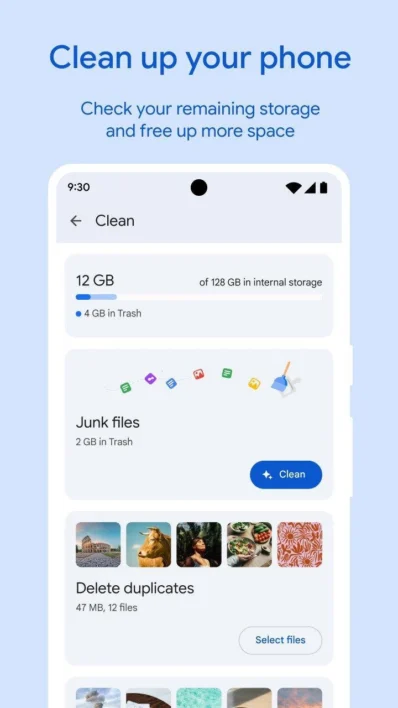
Google’s Files by Google app (free on Play Store) is genuinely useful here. It specifically helps you find large files on Android storage that you may have forgotten about. Open it, tap “Browse,” then sort by file size. You’ll often find forgotten downloads, old APKs, or massive video files hiding in corners you never think to check.
Step 3: Check Individual App Data
Go to Settings → Apps → [App Name] → Storage. Here you’ll see two separate numbers: “App Size” and “Data.” The “Data” field includes cached files and stored content, and it can sometimes be shockingly large for apps you barely use.
Step-by-Step: How to Clear “Other Storage” on Android Without Root
1. Clear App Cache, All of It, Not Just One App
This is the most impactful starting point. Cached data is designed to be temporary. Clearing it won’t delete your accounts, settings, or personal data, it just forces apps to rebuild their cache fresh.
For individual apps: Go to Settings → Apps → Select any app → Storage → Clear Cache.
For a bulk approach: On Samsung devices, go to Settings → Device Care → Storage → Clean Now. On stock Android, you’ll need to do it app by app, or use Files by Google’s “Junk Files” cleaner.
The first time you do this on a neglected phone, don’t be shocked if you reclaim 1–3 GB just from cache alone.
2. Delete Residual Files from Uninstalled Apps
Uninstalling an app doesn’t always clean up everything it left behind. Some apps create folders in your internal storage and those folders stick around even after you delete the app.
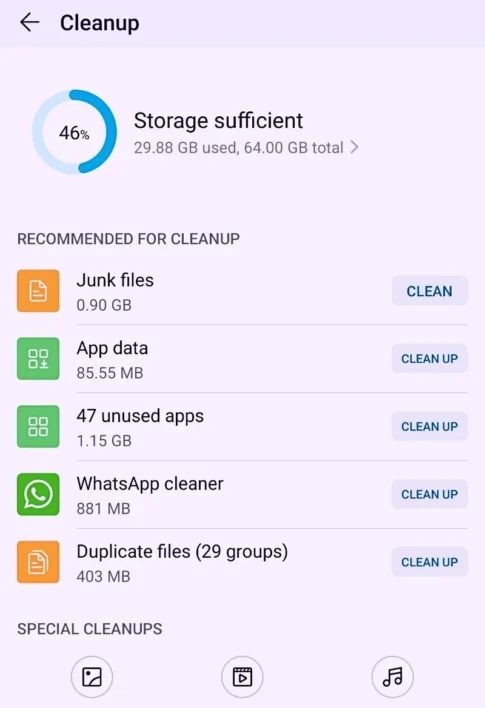
Open your file manager (or Files by Google), navigate to Internal Storage, and look for folders with app names you no longer use. This is what “delete hidden files android storage” actually means in practice, these aren’t technically hidden, but they’re in places most users never look.
Common offenders: old game folders, deleted social apps, backup utilities, and third-party launchers.
Delete any folder whose app you’ve uninstalled. Just double-check the folder contents before deleting, some may contain photos or documents you actually want.
3. Clear WhatsApp, Instagram, and Social App Clutter
Social apps are storage hoarders. They deserve their own section.
WhatsApp automatically downloads photos, videos, voice notes, and documents to your gallery. Go to WhatsApp → Settings → Storage and Data → Manage Storage. Here you can see exactly which chats are using the most space and delete media in bulk.
Instagram stores a surprisingly large cache. Go to Settings → Apps → Instagram → Storage → Clear Cache. Do the same for Snapchat, TikTok, and Twitter/X.
Spotify and YouTube store offline content. Open the app, go to settings, and remove any downloaded content you’re not actively using. This alone can free up several gigabytes if you’ve been downloading playlists for offline listening.
4. Find and Delete Duplicate Files
Duplicates are sneaky. You transfer photos from your old phone, download the same document twice, or save the same image from WhatsApp multiple times. Over time, this doubles (or triples) your storage usage for no reason.
Files by Google has a “Duplicates” section under its cleanup tab. Use it. It groups identical files and lets you delete the extras with one tap. Safe, easy, and often surprisingly rewarding.
5. Remove Downloaded Files You’ve Forgotten About
Your Downloads folder is a digital junk drawer.
Open Files by Google → Downloads, or use your file manager to navigate to Internal Storage → Download. Sort by file size and date. You’ll probably find PDFs you downloaded once to read “later,” APK files from apps you installed months ago, ZIP archives you never opened, and audio files from forgotten projects.
Delete anything you don’t need. Large files on Android storage often hide right here, completely forgotten.
6. Clear Thumbnail Cache
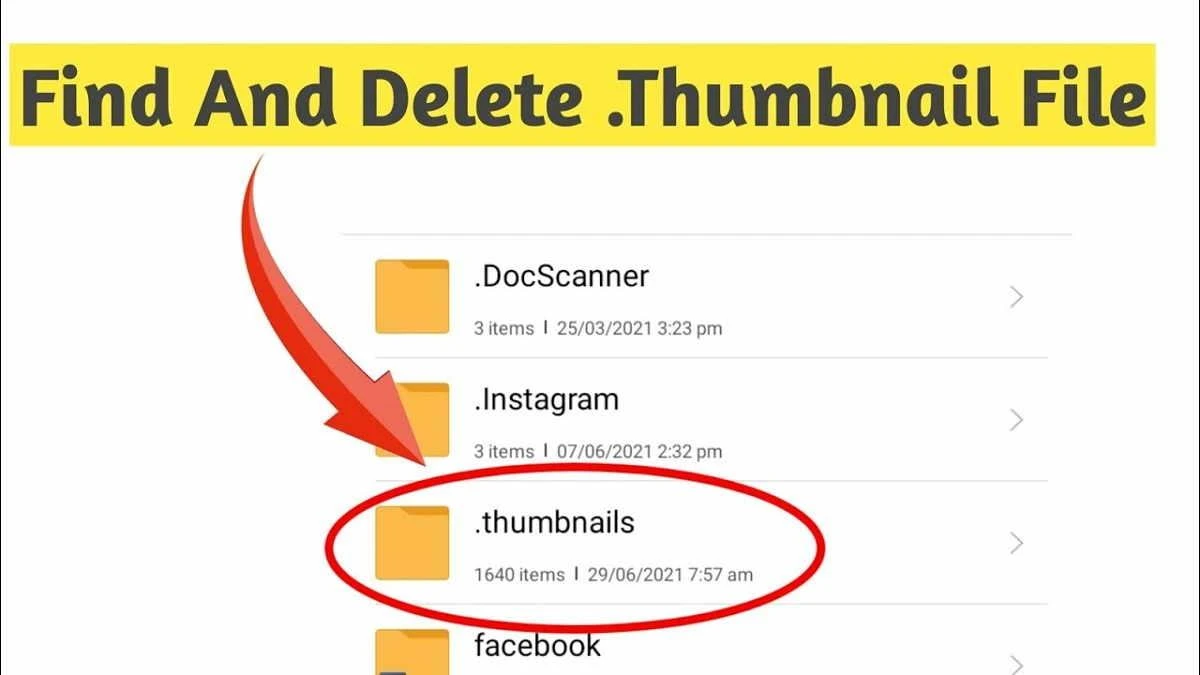
Android generates thumbnail images for every photo and video so they load faster in your gallery. This thumbnail cache can grow to several hundred megabytes on phones with large photo libraries.
To clear it:
- Open your file manager
- Navigate to Internal Storage → DCIM → .thumbnails
- Delete the contents of that folder
Android will regenerate thumbnails as needed, you’re not losing any actual photos. Note: the .thumbnails folder may be hidden. Enable “Show Hidden Files” in your file manager settings if you can’t find it.
7. Manage Offline Content and Downloads in Streaming Apps
Netflix, Amazon Prime, Spotify, Pocket, and similar apps let you download content for offline use. This is genuinely useful, but it also eats storage silently.
Go into each streaming app’s settings and review downloaded content. Remove anything you’ve already watched or listened to, or content you downloaded ages ago “just in case.” You can always re-download it when you need it.
This is one of the most effective ways to free up space on Android without reset, especially if you’re a heavy streaming user.
8. Clear Browser Cache and Offline Data
Your browser – whether it’s Chrome, Firefox, or Samsung Internet, stores cached web pages, cookies, form data, and offline content.
In Chrome: Settings → Privacy and Security → Clear Browsing Data → Select “Cached images and files” → Clear Data.
Do this monthly and you’ll prevent a quiet but steady accumulation of several hundred megabytes in the “Other” category.
9. Use Developer Options to Identify Storage Hogs (Advanced)
If you’re comfortable going slightly deeper, Android’s Developer Options can reveal app storage behavior in more detail.
Enable Developer Options by going to Settings → About Phone → tap “Build Number” seven times. Then go to Settings → Developer Options → Running Services. This shows you which apps are actively running and how much RAM and data they’re consuming.
This won’t directly let you delete files, but it helps you identify which apps deserve closer attention in your storage audit.
10. Move Files to SD Card or Cloud Storage
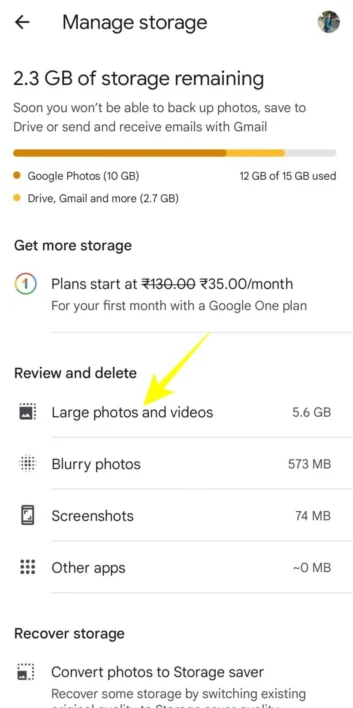
If your phone supports a microSD card, move your photos, videos, and downloaded files there. This doesn’t reduce “Other Storage” directly, but it frees up internal storage and prevents future accumulation.
For cloud storage:
- Google Photos (with backup enabled) lets you safely delete local copies of photos after they’re backed up
- Google Drive works well for documents and downloads
- OneDrive or Dropbox if you prefer those ecosystems
Once your files are safely backed up to the cloud, use Google Photos’ “Free Up Space” option – it removes locally stored photos that are already backed up. This is one of the cleanest, safest ways to manage internal storage on Android efficiently.



How to Prevent “Other Storage” from Growing Back
Clearing storage is only half the battle. If you don’t change a few habits, you’ll be back to square one in three months.
Set a monthly storage audit reminder. Spend 10 minutes once a month going through your Downloads folder and clearing app caches. It sounds boring, but it’s far less painful than watching your phone slow to a crawl.
Disable auto-download in WhatsApp and Telegram. Both apps download media automatically by default. Turn this off in their settings and only save what you actually want.
Use streaming instead of downloading where possible. Only download offline content when you genuinely need it, on a flight, in a remote area, etc.
Regularly review your installed apps. Apps you haven’t opened in 30 days are probably not essential. Uninstalling them removes not just the app, but the data and cache it’s been accumulating.
Keep your phone updated. Newer Android versions handle storage more efficiently. Manufacturers also often improve their built-in storage management tools with updates.
Does Clearing “Other Storage” Affect Phone Performance?
Actually, the opposite. Phones with nearly full storage are slower than phones with breathing room.
Android needs free space to write temporary files during normal operation. When storage is near capacity, the system starts struggling, apps take longer to load, the camera hesitates before saving photos, and your phone may start feeling generally sluggish.
Cleaning up “Other Storage” regularly keeps your phone running at the pace it was designed for. Think of it as the digital equivalent of clearing your workspace so you can actually think straight.
What If “Other Storage” Is Still Huge After All This?
If you’ve done everything above and still have a suspiciously large “Other” category, a few possibilities worth investigating:
Corrupted cache or stuck temp files: Restart your phone, then check storage again. Sometimes a reboot clears temp files that manual deletion couldn’t reach.
Large system logs: Some Android devices accumulate debug logs that can grow large over time. These are typically in Internal Storage → Android → data folders under specific app names. Approach this folder carefully, don’t delete anything unless you’re sure what it belongs to.
OTA update packages: Large Android system updates sometimes leave behind their installation packages. Check for large files in your root-level internal storage, especially anything named with a system update pattern.
Bloatware data: Pre-installed manufacturer apps sometimes accumulate data silently. You can’t always uninstall them, but you can go to Settings → Apps → [Bloatware App] → Storage → Clear Data to reclaim that space.


Frequently Asked Questions
What is “Other Storage” on Android?
“Other Storage” on Android is a catch-all category that includes app cache, residual files from deleted apps, offline content from streaming apps, temporary system files, browser data, and miscellaneous downloads that don’t fit into Photos, Videos, or Apps categories.
Why is “Other Storage” so large on my Android phone?
It grows over time because apps like WhatsApp, Instagram, and Spotify store media, cache, and offline content silently. Uninstalled apps also leave behind folders. Without regular cleanup, these files accumulate into several gigabytes inside “Other Storage.”
Can I clear “Other Storage” on Android without factory reset?
Yes. You can clear it by deleting app cache, removing leftover folders from uninstalled apps, cleaning your Downloads folder, removing offline content from streaming apps, and using Google’s Files by Google app — all without a factory reset or root access.
Does clearing “Other Storage” delete my photos or personal data?
No. Clearing cache and junk files from “Other Storage” does not delete your photos, contacts, messages, or app data. It only removes temporary files, residual data, and cached content that apps no longer need.
What app can I use to clear “Other Storage” on Android?
Files by Google (free on Play Store) is the safest and most effective app for clearing “Other Storage.” It scans for junk files, duplicates, large files, and cached data. Avoid third-party “cleaner” apps with aggressive ads or fake reviews.
Why does “Other Storage” keep coming back after I clear it?
Apps continuously generate cache and temporary files during normal use. Social apps like WhatsApp and Instagram auto-download media. Streaming apps store offline content. Without changing these app settings, “Other Storage” rebuilds itself within weeks.
How do I find large files hidden in Android storage?
Open Files by Google → tap “Browse” → sort files by size. You can also go to Settings → Storage → tap a category to see large individual files. This helps identify forgotten downloads, old APKs, and oversized app data.
Is it safe to delete files from “Other Storage” on Android?
Yes, if you know what you’re deleting. Cache files, leftover app folders, Downloads, and duplicate files are all safe to remove. Avoid deleting files inside the Android/data or Android/obb system folders unless you’re sure of what they belong to.
How much space can I free by clearing “Other Storage”?
It varies by phone and usage habits. Most users recover between 2 GB and 10 GB on a first deep clean. Heavy users of WhatsApp, Spotify, or Netflix may recover significantly more, especially if offline content has been accumulating for months.
Does Android automatically clear “Other Storage”?
Android does not automatically clear “Other Storage.” It manages RAM automatically, but cache files and junk data in storage persist until you manually delete them. Some manufacturer tools like Samsung’s Device Care offer basic auto-cleaning, but it’s limited.
The Bottom Line on Clearing “Other Storage” in Android
Clearing “Other Storage” in Android without a reset is completely doable — it just takes a methodical approach rather than one magic button.
Start with app cache, clean up your Downloads folder, tackle social media clutter, remove leftover files from deleted apps, and set up cloud backup for your photos. Do this in layers, and you’ll typically recover anywhere from 3 to 10 GB depending on how long the clutter has been building.
A factory reset should be reserved for cases where the phone has deeper software issues — not as a response to storage bloat. Your data, your settings, and your sanity are worth more than that.
Clean your storage the smart way. Your phone will thank you — probably by finally letting you take that photo.